> ## Documentation Index
> Fetch the complete documentation index at: https://developers.pleo.io/llms.txt
> Use this file to discover all available pages before exploring further.
# Authenticating Using API Keys
**This page has now been ARCHIVED. Please visit:**
* [Standalone API Keys Overview](/docs/current/authentication/standalone-api-keys-overview)
* [Standalone API Key Workflow Guide](/docs/current/guides/standalone-api-keys-workflow-guide)
* [How to Make an API Call Using a Standalone API Key](/docs/current/how-tos/api-keys/how-to-make-an-api-call-using-standalone-api-keys)
* [How to Make an API Call Using a Standalone API Key (Postman)](/docs/current/how-tos/api-keys/how-to-make-an-api-call-using-standalone-api-keys-postman)
## Using API Keys in Curl
Specify the API key in the `-u` or `--user` flag. The password is an empty string.
Here is an example:
```bash theme={null}
curl --request GET -sL \\
--url ''\\
-u 'enter the API key here'
```
## Using API Keys in a Graphical User Inteface (GUI) Tool
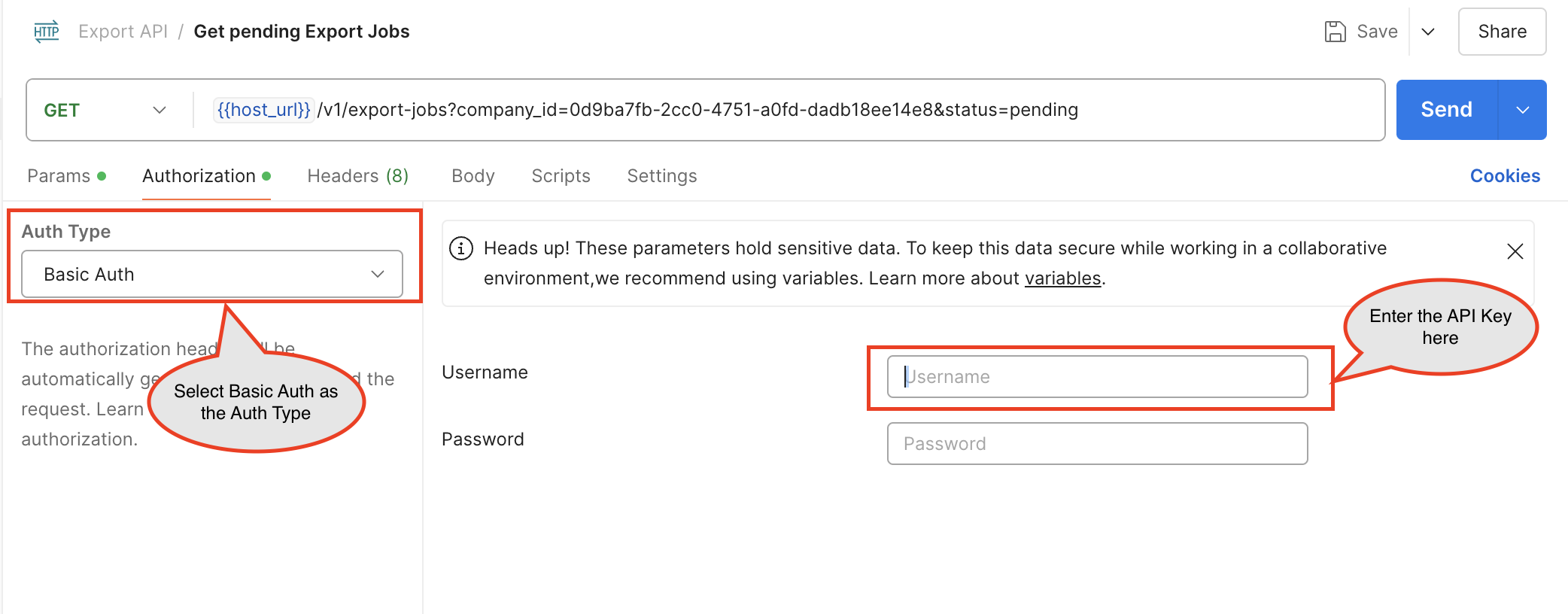
Here, we are using **Postman** for reference:
1. In the `Authorization` header of the request, select **Basic Auth** as the **Auth Type**.
2. In the `Username`, enter the API key.
3. In the `Password`, do not enter any value.