> ## Documentation Index
> Fetch the complete documentation index at: https://developers.pleo.io/llms.txt
> Use this file to discover all available pages before exploring further.
# How to Create, Update, and Archive Accounts
export const CreateUpdateArchiveAccountsDiagram = () => {
const diagram = `
%%{init: {"themeVariables": {"fontSize": "14px"}}}%%
flowchart LR
S1["1. Create Accounts for New AS Entries"] --> S2["2. Unarchive or Update Existing Accounts"] --> S3["3. Archive Accounts with No Matching AS Entry"]
click S1 "#1-create-accounts-for-new-as-entries"
click S2 "#2-unarchive-or-update-existing-accounts"
click S3 "#3-archive-accounts-with-no-matching-as-entry"
style S1 white-space:normal
style S2 white-space:normal
style S3 white-space:normal
`;
return ;
};
export const CoASyncWorkflowDiagramTopNav = ({highlight}) => {
const highlightStyle = highlight ? `style ${highlight} stroke:#f63b92,stroke-width:3px` : "";
const diagram = `
%%{init: {"themeVariables": {"fontSize": "14px"}}}%%
flowchart LR
subgraph AS["Accounting System"]
source["Chart of Accounts"]
end
subgraph Pleo["Pleo APIs"]
A["1. Fetch and Match Accounts"]
B["2. Create, Update, and Archive Accounts"]
A --> B
end
source --> A
click A "/docs/current/how-tos/accounting-integrations/imports/accounts/how-to-sync-accounts"
click B "/docs/current/how-tos/accounting-integrations/imports/accounts/how-to-create-update-archive-accounts"
style A white-space:normal
style B white-space:normal
style source white-space:normal
style AS fill:none,stroke:#000000
style Pleo fill:none,stroke:#000000
${highlightStyle}
`;
return ;
};
export const WhatComesNext = ({children, href}) => ;
export const NoteCallout = ({title, children, icon = "💡"}) =>
{icon}
{title &&
{title}
}
{children}
;
export const RememberCallout = ({title, children, icon = "🪢"}) =>
{icon}
{title &&
{title}
}
{children}
;
This how-to covers the write operations for Chart of Accounts Sync: creating new Accounts, updating or unarchiving existing Accounts, and archiving Accounts that are no longer active in the Accounting System.
Run this after [How to Sync Accounts](/docs/current/how-tos/accounting-integrations/imports/accounts/how-to-sync-accounts), which covers fetching and matching accounts from both systems.
## Prerequisites
Before you begin:
* You have completed [How to Sync Accounts](/docs/current/how-tos/accounting-integrations/imports/accounts/how-to-sync-accounts) and determined what action is needed for each account
* Your integration is authenticated using one of the [supported authentication methods](/docs/current/integration-design/auth/integration-design-auth-overview#authentication-policy-overview)
* Your integration can call Pleo's Chart of Accounts API endpoints
## Scenario
This how-to continues from the [How to Sync Accounts](/docs/current/how-tos/accounting-integrations/imports/accounts/how-to-sync-accounts) scenario. After matching, the following actions are required:
| AS Account | Pleo Account | Action |
| ---------------------- | ---------------------- | --------- |
| 1000 - Office Supplies | 1000 - Office Supplies | No action |
| 2000 - Travel | 2000 - Travel | Unarchive |
| 3000 - Software | — | Create |
| 4000 - Marketing | 4000 - Advertising | Update |
| — | 5000 - Entertainment | Archive |
The diagram below shows where these operations fit in the full reconciliation loop.
```mermaid theme={null}
%%{init: {"themeVariables": {"fontSize": "12px"}}}%%
flowchart TD
A[Fetch active Accounts from AS] --> B[Fetch active and archived Accounts from Pleo]
B --> C[Match each AS Account to Pleo Account by externalId]
C -->|Found, active, match| D[Preserve]
C -->|Found, active, differs| E[Update name / code]
C -->|Found, archived| F[Unarchive and update if needed]
C -->|Not found| G[Create new Account]
D --> H[Next account]
E --> H
F --> H
G --> H
H --> I{More accounts?}
I -->|Yes| C
I -->|No| J[Archive unmatched active Pleo Accounts]
J --> K[Sync Complete]
style A white-space:normal
style B white-space:normal
style C white-space:normal
style D white-space:normal
style E white-space:normal
style F white-space:normal
style G white-space:normal
style H white-space:normal
style I white-space:normal
style J white-space:normal
style K white-space:normal
```
## Steps
### 1. Create Accounts for New AS Entries
**API Endpoint**: POST [`/v1/chart-of-accounts`](/reference/accounts/create-a-new-account)
If an AS account has no matching Pleo Account, create a new Account.
**Example Pseudo:**
```pseudo theme={null}
if matchedAccount is null:
newAccount.externalId = account.externalId
newAccount.code = account.code
newAccount.name = account.name
newAccount.archived = false
POST newAccount to Pleo
```
#### Example Request
```bash theme={null}
curl -X POST "https://external.staging.pleo.io/v1/chart-of-accounts" \
-H "Authorization: Bearer " \
-H "Content-Type: application/json" \
-d '{
"companyId": "12abc3d4-e567-890e-1234-abc56e78fabc",
"externalId": "ext-3000",
"code": "3000",
"name": "Software",
"archived": false
}'
```
```bash theme={null}
curl --request POST \
-u "pls_1ab2cd3e4f5g6h7a89b012c34de56f78_gabc90:" \
-H "Accept: application/json;charset=UTF-8" \
-H "Content-Type: application/json" \
"https://external.staging.pleo.io/v1/chart-of-accounts" \
-d '{
"companyId": "12abc3d4-e567-890e-1234-abc56e78fabc",
"externalId": "ext-3000",
"code": "3000",
"name": "Software",
"archived": false
}' \
| jq
```
#### Example Response
```json theme={null}
{
"data": {
"id": "e5f6g7h8-i901-234i-5678-efg90i12defg",
"companyId": "12abc3d4-e567-890e-1234-abc56e78fabc",
"externalId": "ext-3000",
"code": "3000",
"name": "Software",
"archived": false
}
}
```
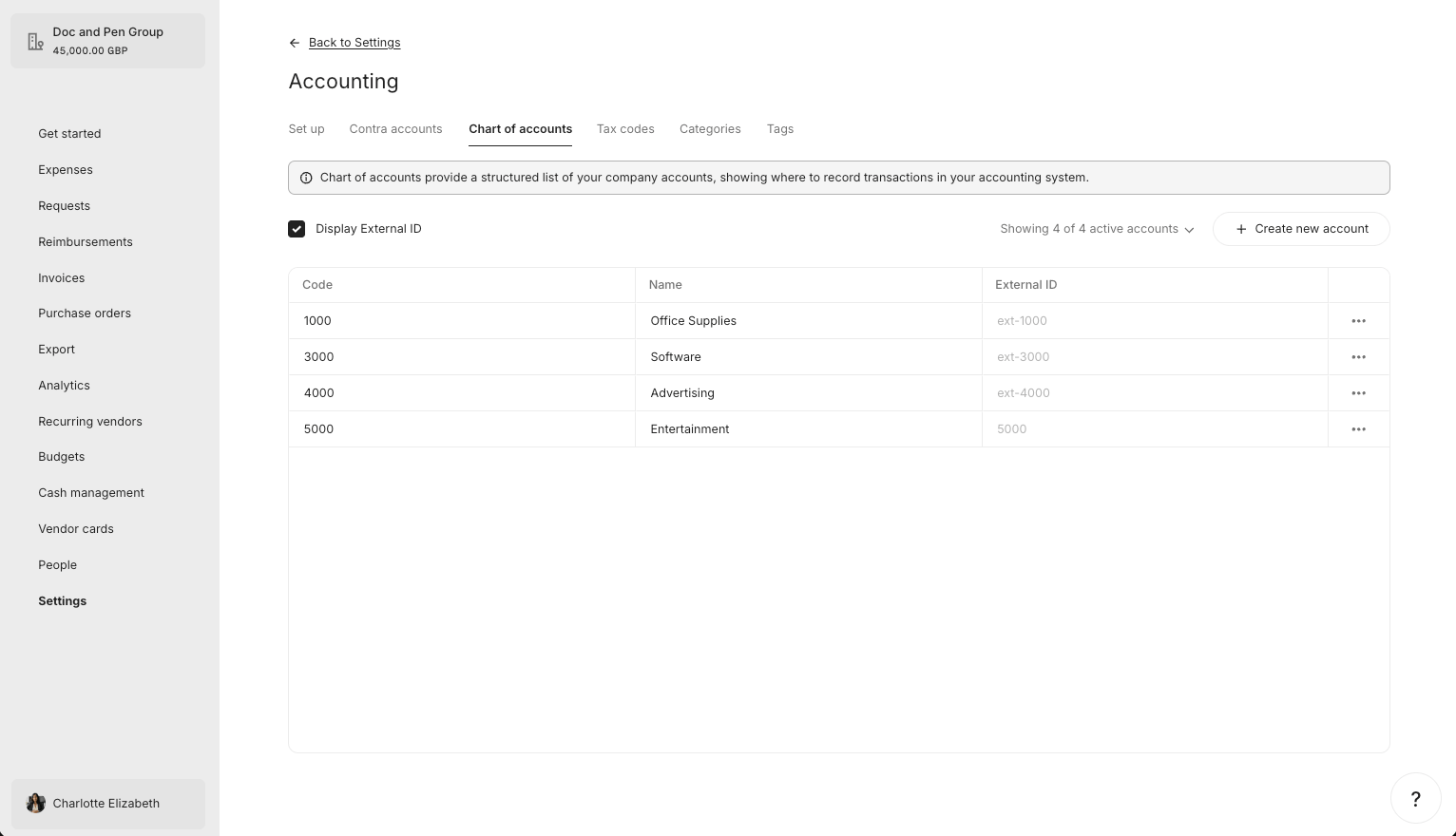
#### What it looks like in Pleo Web App
If you have a large number of accounts to create, you can send up to 1000 in a single request using the batch endpoint. See [How to Create Multiple Accounts in a Single Request](/docs/current/how-tos/accounting-integrations/imports/accounts/how-to-batch-create-accounts).
***
### 2. Unarchive or Update Existing Accounts
**API Endpoint**: PUT [`/v1/chart-of-accounts/{accountId}`](/reference/accounts/update-an-account)
If a matching Account is found:
* **AS account is active, Pleo Account is archived:** Unarchive by setting `archived: false` and update name and code if they differ.
* **AS account is active, Pleo Account name or code differs:** Update the Account to match the AS.
* **AS account is active, Pleo Account name and code match:** No action required.
**Example Pseudo:**
```pseudo theme={null}
if matchedAccount.archived == true:
matchedAccount.archived = false
matchedAccount.name = account.name
matchedAccount.code = account.code
PUT matchedAccount to Pleo
else if matchedAccount.name != account.name or matchedAccount.code != account.code:
matchedAccount.name = account.name
matchedAccount.code = account.code
PUT matchedAccount to Pleo
```
### Unarchive
#### Example Request
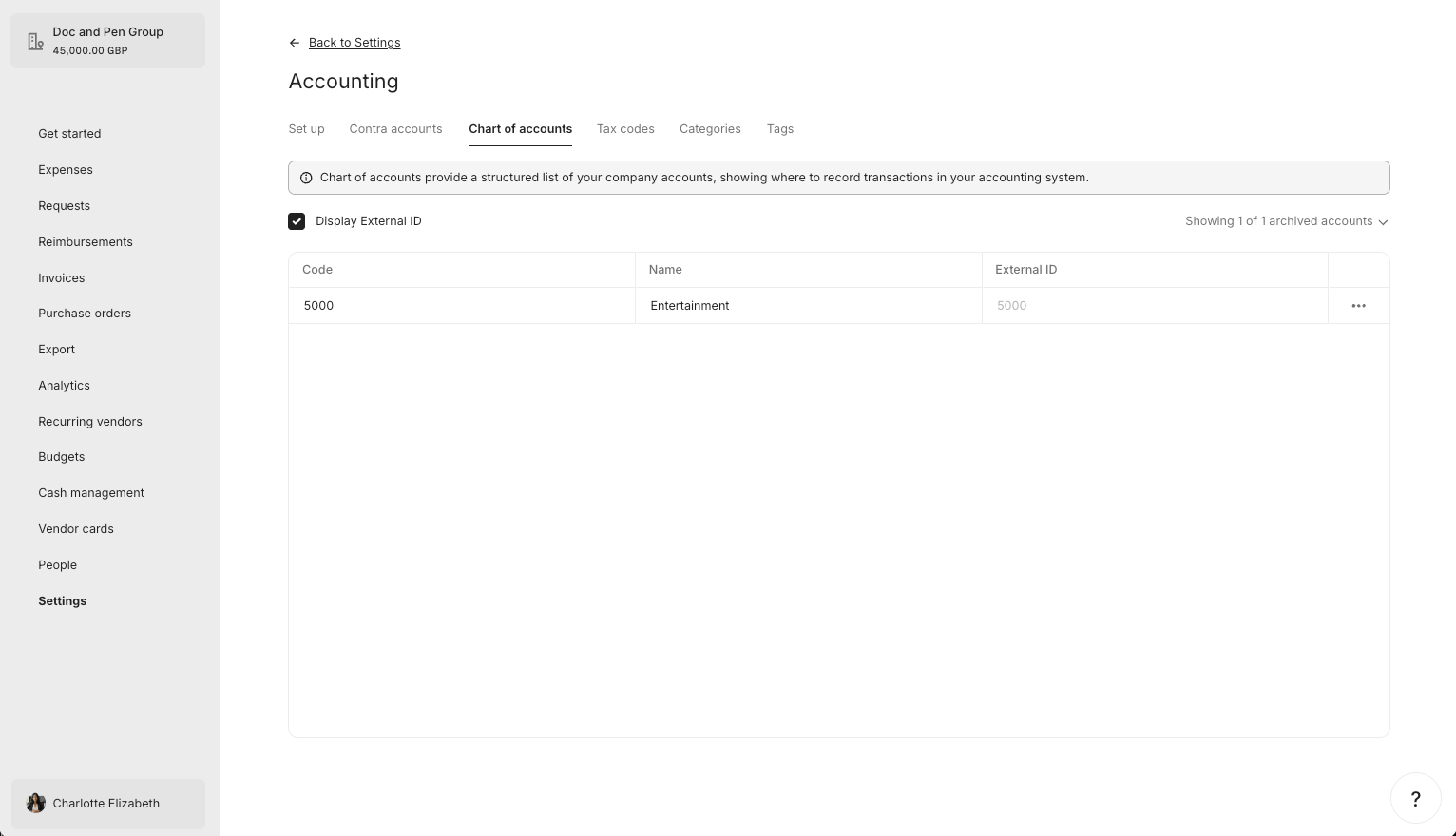
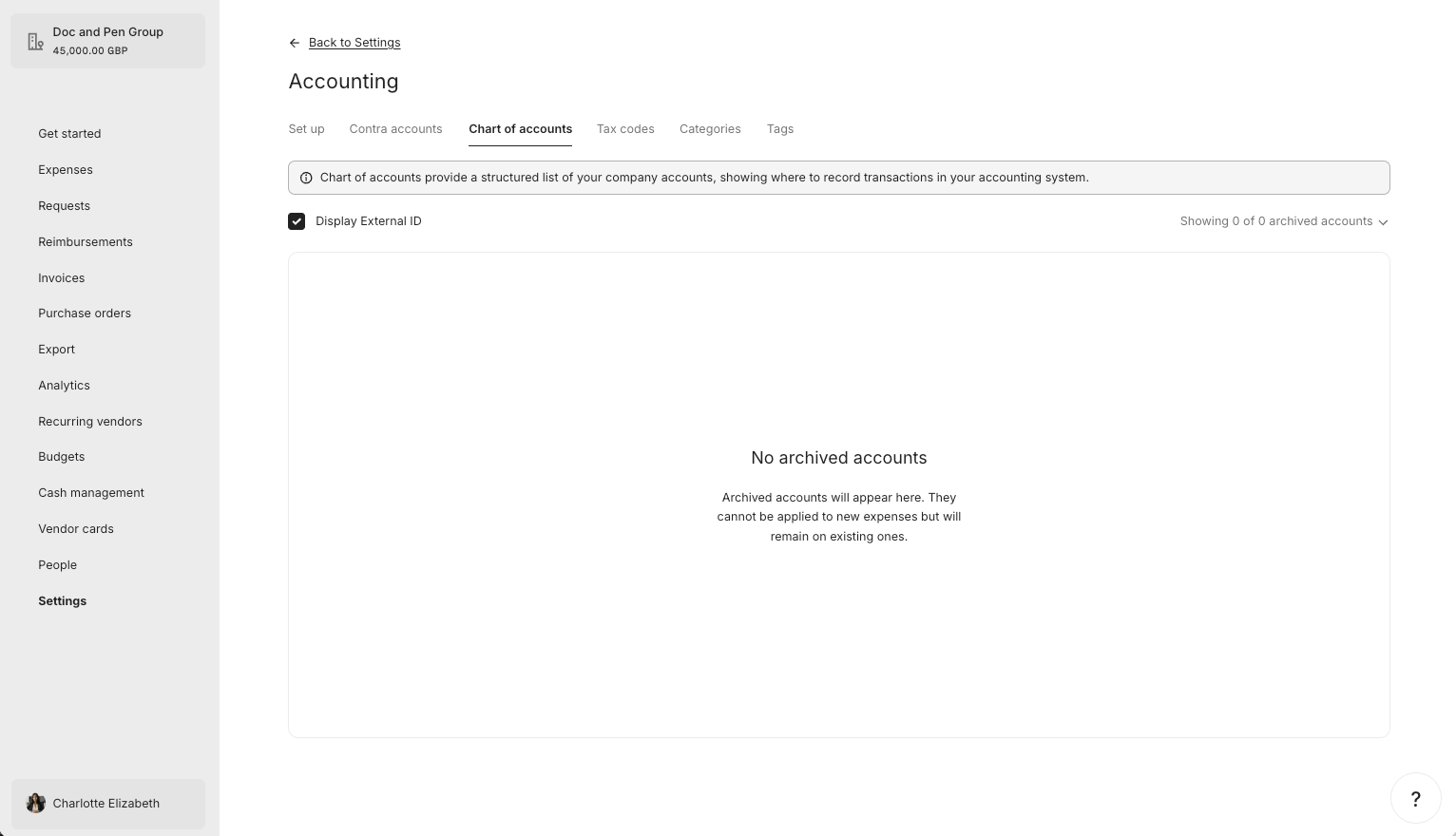
The "2000 - Travel" Account is unarchived in this example.
```bash theme={null}
curl -X PUT "https://external.staging.pleo.io/v1/chart-of-accounts/d8371c2d-3f62-47df-a8d6-6a3ba6387e00" \
-H "Authorization: Bearer " \
-H "Content-Type: application/json" \
-d '{
"externalId": "ext-2000",
"code": "2000",
"name": "Travel",
"archived": false
}'
```
```bash theme={null}
curl --request PUT \
-u "pls_1ab2cd3e4f5g6h7a89b012c34de56f78_gabc90:" \
-H "Accept: application/json;charset=UTF-8" \
-H "Content-Type: application/json" \
"https://external.staging.pleo.io/v1/chart-of-accounts/d8371c2d-3f62-47df-a8d6-6a3ba6387e00" \
-d '{
"externalId": "ext-2000",
"code": "2000",
"name": "Travel",
"archived": false
}' \
| jq
```
#### Example Response
```json theme={null}
{
"data": {
"id": "d8371c2d-3f62-47df-a8d6-6a3ba6387e00",
"companyId": "12abc3d4-e567-890e-1234-abc56e78fabc",
"externalId": "ext-2000",
"code": "2000",
"name": "Travel",
"archived": false
}
}
```
#### What it looks like in Pleo Web App
### Update
#### Example Request
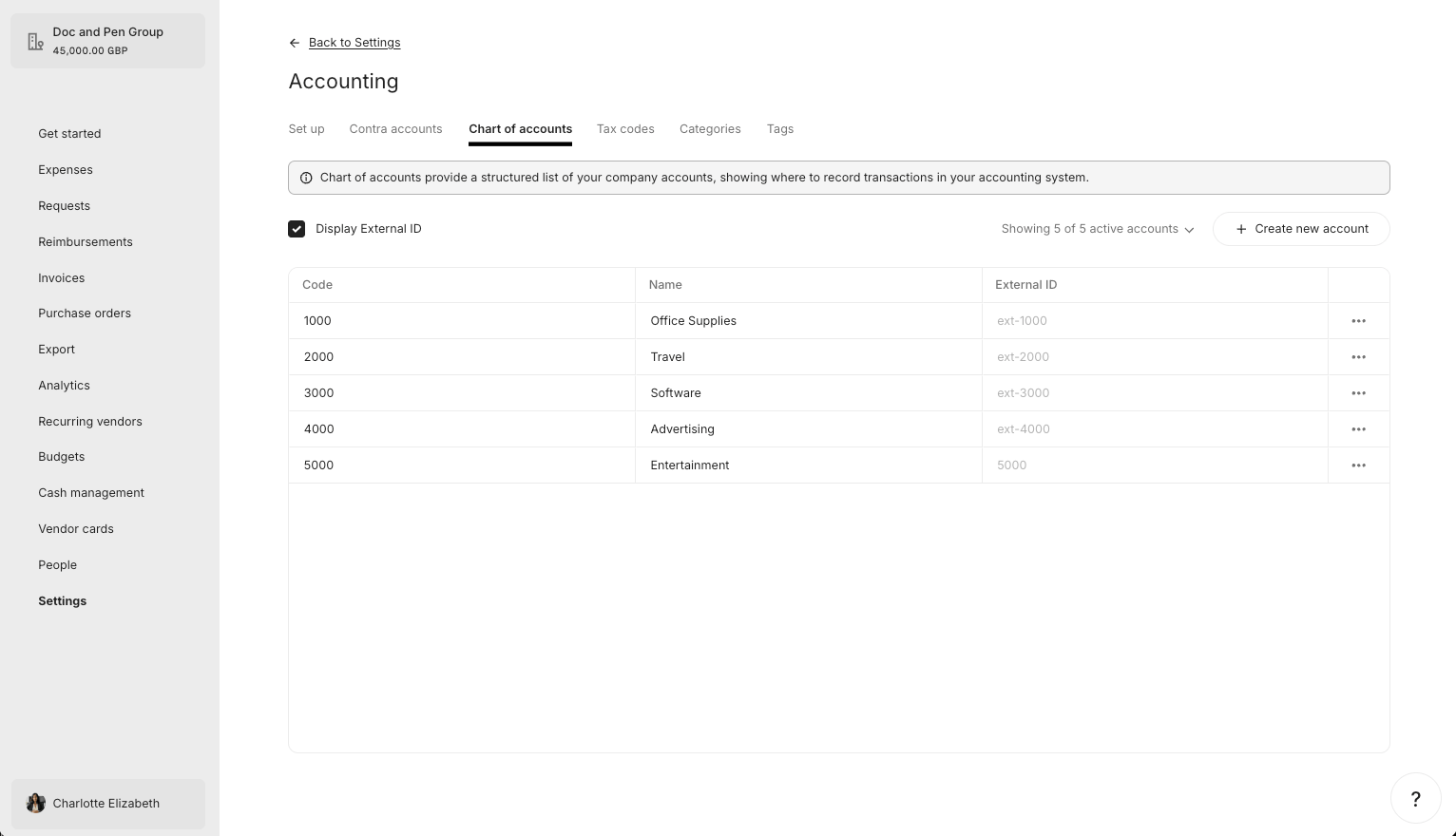
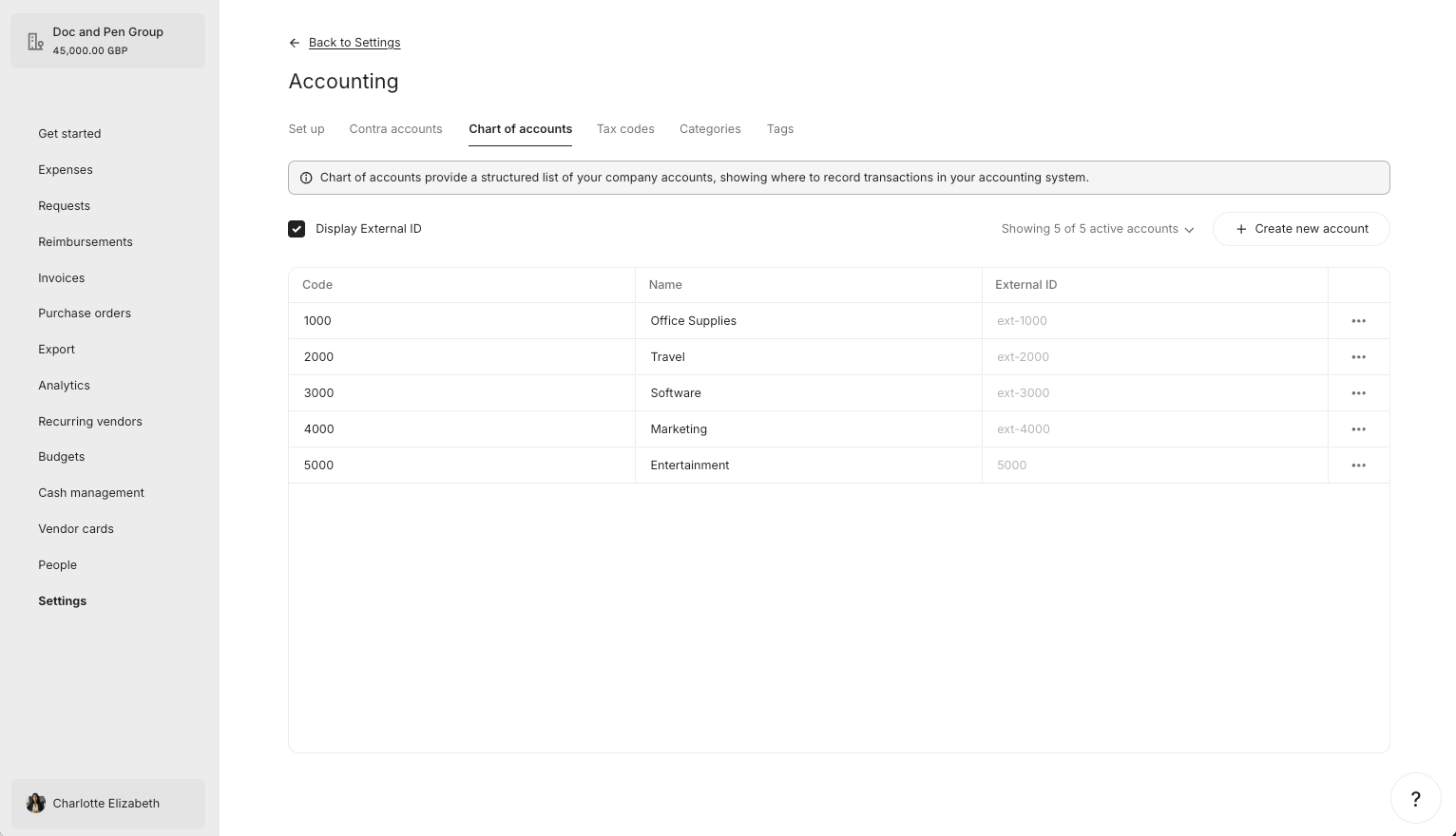
The "4000 - Advertising" Account is renamed to "4000 - Marketing" to match the AS in this example.
```bash theme={null}
curl -X PUT "https://external.staging.pleo.io/v1/chart-of-accounts/a470bfbe-8046-4b43-a4d9-4f5796acdd93" \
-H "Authorization: Bearer " \
-H "Content-Type: application/json" \
-d '{
"externalId": "ext-4000",
"code": "4000",
"name": "Marketing",
"archived": false
}'
```
```bash theme={null}
curl --request PUT \
-u "pls_1ab2cd3e4f5g6h7a89b012c34de56f78_gabc90:" \
-H "Accept: application/json;charset=UTF-8" \
-H "Content-Type: application/json" \
"https://external.staging.pleo.io/v1/chart-of-accounts/a470bfbe-8046-4b43-a4d9-4f5796acdd93" \
-d '{
"externalId": "ext-4000",
"code": "4000",
"name": "Marketing",
"archived": false
}' \
| jq
```
#### Example Response
```json theme={null}
{
"data": {
"id": "a470bfbe-8046-4b43-a4d9-4f5796acdd93",
"companyId": "12abc3d4-e567-890e-1234-abc56e78fabc",
"externalId": "ext-4000",
"code": "4000",
"name": "Marketing",
"archived": false
}
}
```
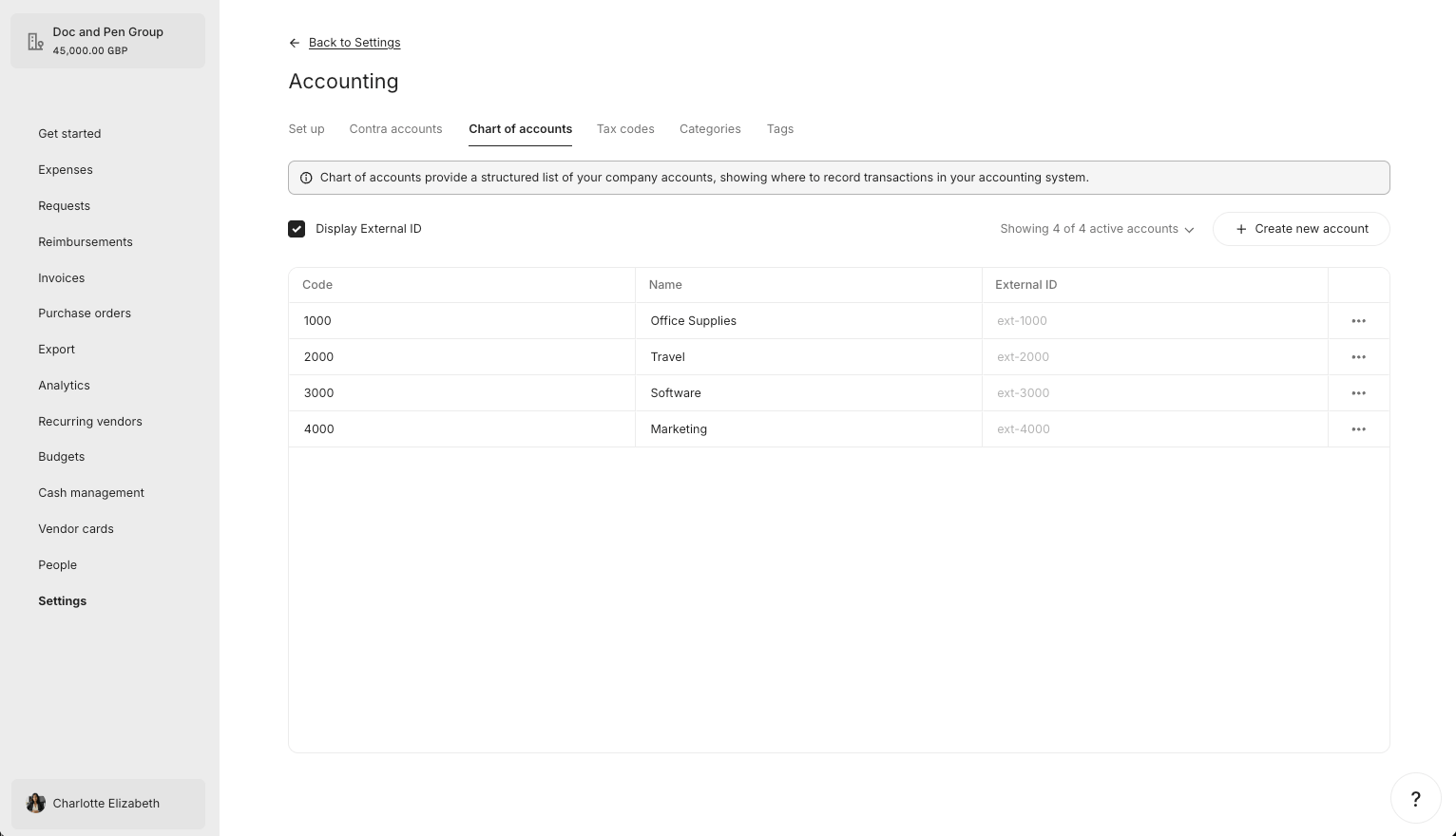
#### What it looks like in Pleo Web App
Before update:
After Update:
***
### 3. Archive Accounts with No Matching AS Entry
**API Endpoint**: PUT [`/v1/chart-of-accounts/{accountId}`](/reference/accounts/update-an-account)
If a Pleo Account is active but its corresponding AS account is no longer active (or does not exist), archive the Account.
Do not delete Accounts. Archiving is non-destructive and reversible.
**Example Pseudo:**
```pseudo theme={null}
activeASExternalIds = activeASAccounts.map(a => a.externalId)
for account in pleoAccounts where archived == false:
if account.externalId not in activeASExternalIds:
account.archived = true
PUT account to Pleo
```
#### Example Request
```bash theme={null}
curl -X PUT "https://external.staging.pleo.io/v1/chart-of-accounts/7ea2006f-180e-4c52-a2bb-562d3a62fd48" \
-H "Authorization: Bearer " \
-H "Content-Type: application/json" \
-d '{
"externalId": "5000",
"code": "5000",
"name": "Entertainment",
"archived": true
}'
```
```bash theme={null}
curl --request PUT \
-u "pls_1ab2cd3e4f5g6h7a89b012c34de56f78_gabc90:" \
-H "Accept: application/json;charset=UTF-8" \
-H "Content-Type: application/json" \
"https://external.staging.pleo.io/v1/chart-of-accounts/7ea2006f-180e-4c52-a2bb-562d3a62fd48" \
-d '{
"externalId": "5000",
"code": "5000",
"name": "Entertainment",
"archived": true
}' \
| jq
```
As this is a PUT action, include the current values for all fields; only `archived` should change.
#### Example Response
```json theme={null}
{
"data": {
"id": "7ea2006f-180e-4c52-a2bb-562d3a62fd48",
"companyId": "12abc3d4-e567-890e-1234-abc56e78fabc",
"externalId": "5000",
"code": "5000",
"name": "Entertainment",
"archived": true
}
}
```
#### What it looks like in Pleo Web App
***
## Result
The table below recaps what happened to each Account across all steps.
| Account | AS Status | Pleo State Before | Action | Final Pleo State |
| ---------------------- | --------- | --------------------- | ---------- | ---------------- |
| 1000 - Office Supplies | Active | Active, matches | No action | Active |
| 2000 - Travel | Active | Archived | Unarchived | Active |
| 3000 - Software | Active | Does not exist | Created | Active |
| 4000 - Marketing | Active | Active, name differed | Updated | Active |
| 5000 - Entertainment | Not in AS | Active | Archived | Archived |
Pleo now reflects the current Chart of Accounts from the AS.
| Account | Final State in Pleo | In AS? | Aligned? |
| ---------------------- | ------------------- | ------ | :------: |
| 1000 - Office Supplies | Active | Yes | ✓ Yes |
| 2000 - Travel | Active | Yes | ✓ Yes |
| 3000 - Software | Active | Yes | ✓ Yes |
| 4000 - Marketing | Active | Yes | ✓ Yes |
| 5000 - Entertainment | Archived | No | ✓ Yes |
***
## What Comes Next?
Chart of Accounts Sync Workflow Guide
***
this how-to is part of:
***
## Related Reading
* [How to Sync Accounts](/docs/current/how-tos/accounting-integrations/imports/accounts/how-to-sync-accounts)
* [Sync Accounts Integration Design](/docs/current/integration-design/accounting-integrations/imports/accounts/integration-design-accounts-sync)
* [Data Mapping](/docs/current/integration-design/accounting-integrations/imports/accounts/integration-design-accounts-data-mapping)
* [Platform Capabilities: Chart of Accounts Sync](/docs/current/platform/accounting-integrations/imports/accounts/accounts-sync-overview)
***