> ## Documentation Index
> Fetch the complete documentation index at: https://developers.pleo.io/llms.txt
> Use this file to discover all available pages before exploring further.

# How to Archive Vendors

> For Vendor Sync, how to archive a Pleo Vendor once its corresponding AS vendor is no longer active.

export const ArchiveVendorsDiagram = () => {
  const [isDark, setIsDark] = useState(false);
  useEffect(() => {
    const check = () => setIsDark(document.documentElement.classList.contains("dark"));
    check();
    const observer = new MutationObserver(check);
    observer.observe(document.documentElement, {
      attributes: true,
      attributeFilter: ["class"]
    });
    return () => observer.disconnect();
  }, []);
  const nodeFill = isDark ? "#212222" : "#EEF4F4";
  const nodeStroke = isDark ? "#848989" : "#E1E6E6";
  const nodeTextStyle = isDark ? ",color:#EEF4F4" : ",color:#131414";
  const s2Fill = isDark ? "#212222" : "#EEF4F4";
  const s2Stroke = isDark ? "#848989" : "#212222";
  const s2TextStyle = isDark ? ",color:#EEF4F4" : ",color:#212222";
  const linkStyle = isDark ? "" : "linkStyle default stroke:#848989,stroke-width:1px;";
  const diagram = `
%%{init: {"themeVariables": {"fontSize": "10px"}}}%%
flowchart LR
    S1["1. Archive the Vendor"] --> S2["Vendor state: ARCHIVED"]

click S1 "#1-archive-the-vendor"

style S1 white-space:normal,fill:${nodeFill},stroke:${nodeStroke}${nodeTextStyle}
style S2 white-space:normal,fill:${s2Fill},stroke:${s2Stroke},stroke-dasharray:5 5${s2TextStyle}
${linkStyle}
`;
  return <Mermaid chart={diagram} />;
};

export const VendorSyncWorkflowDiagramTopNav = ({highlight}) => {
  const [isDark, setIsDark] = useState(false);
  useEffect(() => {
    const check = () => setIsDark(document.documentElement.classList.contains("dark"));
    check();
    const observer = new MutationObserver(check);
    observer.observe(document.documentElement, {
      attributes: true,
      attributeFilter: ["class"]
    });
    return () => observer.disconnect();
  }, []);
  const nodeFill = isDark ? "#212222" : "#EEF4F4";
  const nodeStroke = isDark ? "#848989" : "#E1E6E6";
  const nodeTextStyle = isDark ? ",color:#EEF4F4" : ",color:#131414";
  const subgraphFill = isDark ? "#131414" : "#ffffff";
  const subgraphStroke = isDark ? "#848989" : "#6B7070";
  const subgraphTextStyle = isDark ? ",color:#EEF4F4" : ",color:#6B7070";
  const linkStyle = isDark ? "" : "linkStyle default stroke:#848989,stroke-width:1px;";
  const highlightStyle = highlight ? `style ${highlight} stroke:#FEB6FE,stroke-width:2px` : "";
  const diagram = `
%%{init: {"themeVariables": {"fontSize": "18px"}}}%%
flowchart LR

subgraph AS["Accounting System"]
    source["Vendors"]
end

subgraph Pleo["Pleo APIs"]
    A["1. Fetch and<br>Match<br>Vendors<br>"]
    B["2. Create<br>Vendors<br>"]
    C["3. Unarchive<br>Vendors<br>"]
    D["4. Update<br>Vendors<br>"]
    E["5. Archive<br>Vendors<br>"]
    A --> B --> C --> D --> E
end

source --> A

click A "/docs/current/how-tos/accounting-integrations/imports/vendors/how-to-fetch-and-match-vendors"
click B "/docs/current/how-tos/accounting-integrations/imports/vendors/how-to-create-vendors"
click C "/docs/current/how-tos/accounting-integrations/imports/vendors/how-to-unarchive-vendors"
click D "/docs/current/how-tos/accounting-integrations/imports/vendors/how-to-update-vendors"
click E "/docs/current/how-tos/accounting-integrations/imports/vendors/how-to-archive-vendors"

style A white-space:normal,fill:${nodeFill},stroke:${nodeStroke}${nodeTextStyle}
style B white-space:normal,fill:${nodeFill},stroke:${nodeStroke}${nodeTextStyle}
style C white-space:normal,fill:${nodeFill},stroke:${nodeStroke}${nodeTextStyle}
style D white-space:normal,fill:${nodeFill},stroke:${nodeStroke}${nodeTextStyle}
style E white-space:normal,fill:${nodeFill},stroke:${nodeStroke}${nodeTextStyle}
style source white-space:normal,fill:${nodeFill},stroke:${nodeStroke}${nodeTextStyle}

style AS fill:${subgraphFill},stroke:${subgraphStroke}${subgraphTextStyle}
style Pleo fill:${subgraphFill},stroke:${subgraphStroke}${subgraphTextStyle}

${highlightStyle}
${linkStyle}
`;
  return <Mermaid chart={diagram} />;
};

export const WhatComesNext = ({children, href}) => <div className="mt-4">
    <a href={href} className="btn-primary">
      {children} →
    </a>
  </div>;

export const WarningCallout = ({title, children}) => <div className="callout-box callout-warning">
    <div className="callout-row">
      <span className="callout-badge">
        <svg width="18" height="18" xmlns="http://www.w3.org/2000/svg" viewBox="0 0 256 256" fill="currentColor"><path d="M215.46,216H40.54C27.92,216,20,202.79,26.13,192.09L113.59,40.22c6.3-11,22.52-11,28.82,0l87.46,151.87C236,202.79,228.08,216,215.46,216Z" opacity="0.2" /><path d="M236.8,188.09,149.35,36.22h0a24.76,24.76,0,0,0-42.7,0L19.2,188.09a23.51,23.51,0,0,0,0,23.72A24.35,24.35,0,0,0,40.55,224h174.9a24.35,24.35,0,0,0,21.33-12.19A23.51,23.51,0,0,0,236.8,188.09ZM222.93,203.8a8.5,8.5,0,0,1-7.48,4.2H40.55a8.5,8.5,0,0,1-7.48-4.2,7.59,7.59,0,0,1,0-7.72L120.52,44.21a8.75,8.75,0,0,1,15,0l87.45,151.87A7.59,7.59,0,0,1,222.93,203.8ZM120,144V104a8,8,0,0,1,16,0v40a8,8,0,0,1-16,0Zm20,36a12,12,0,1,1-12-12A12,12,0,0,1,140,180Z" /></svg>
      </span>
      <div>
        {title && <div className="callout-title">
            {title}
          </div>}
        <div className="callout-body">
          {children}
        </div>
      </div>
    </div>
  </div>;

export const NoteCallout = ({title, children}) => <div className="callout-box callout-note">
    <div className="callout-row">
      <span className="callout-icon">
        <svg width="22" height="22" xmlns="http://www.w3.org/2000/svg" viewBox="0 0 256 256" fill="currentColor"><path d="M208,104a79.86,79.86,0,0,1-30.59,62.92A24.29,24.29,0,0,0,168,186v6a8,8,0,0,1-8,8H96a8,8,0,0,1-8-8v-6a24.11,24.11,0,0,0-9.3-19A79.87,79.87,0,0,1,48,104.45C47.76,61.09,82.72,25,126.07,24A80,80,0,0,1,208,104Z" opacity="0.2" /><path d="M176,232a8,8,0,0,1-8,8H88a8,8,0,0,1,0-16h80A8,8,0,0,1,176,232Zm40-128a87.55,87.55,0,0,1-33.64,69.21A16.24,16.24,0,0,0,176,186v6a16,16,0,0,1-16,16H96a16,16,0,0,1-16-16v-6a16,16,0,0,0-6.23-12.66A87.59,87.59,0,0,1,40,104.49C39.74,56.83,78.26,17.14,125.88,16A88,88,0,0,1,216,104Zm-16,0a72,72,0,0,0-73.74-72c-39,.92-70.47,33.39-70.26,72.39a71.65,71.65,0,0,0,27.64,56.3A32,32,0,0,1,96,186v6h64v-6a32.15,32.15,0,0,1,12.47-25.35A71.65,71.65,0,0,0,200,104Zm-16.11-9.34a57.6,57.6,0,0,0-46.56-46.55,8,8,0,0,0-2.66,15.78c16.57,2.79,30.63,16.85,33.44,33.45A8,8,0,0,0,176,104a9,9,0,0,0,1.35-.11A8,8,0,0,0,183.89,94.66Z" /></svg>
      </span>
      <div>
        {title && <div className="callout-title">
            {title}
          </div>}
        <div className="callout-body">
          {children}
        </div>
      </div>
    </div>
  </div>;

export const RememberCallout = ({title, children}) => <div className="callout-box callout-remember">
    <div className="callout-row">
      <span className="callout-icon">
        <svg width="22" height="22" xmlns="http://www.w3.org/2000/svg" viewBox="0 0 256 256" fill="currentColor"><path d="M229.66,98.34,172.39,155.8c11.46,22.93-1.72,45.86-10.11,57a8,8,0,0,1-12,.83L42.34,105.76A8,8,0,0,1,43,93.85c29.65-23.92,57.4-10,57.4-10l57.27-57.46a8,8,0,0,1,11.31,0L229.66,87A8,8,0,0,1,229.66,98.34Z" opacity="0.2" /><path d="M235.32,81.37,174.63,20.69a16,16,0,0,0-22.63,0L98.37,74.49c-10.66-3.34-35-7.37-60.4,13.14a16,16,0,0,0-1.29,23.78L85,159.71,42.34,202.34a8,8,0,0,0,11.32,11.32L96.29,171l48.29,48.29A16,16,0,0,0,155.9,224c.38,0,.75,0,1.13,0a15.93,15.93,0,0,0,11.64-6.33c19.64-26.1,17.75-47.32,13.19-60L235.33,104A16,16,0,0,0,235.32,81.37ZM224,92.69h0l-57.27,57.46a8,8,0,0,0-1.49,9.22c9.46,18.93-1.8,38.59-9.34,48.62L48,100.08c12.08-9.74,23.64-12.31,32.48-12.31A40.13,40.13,0,0,1,96.81,91a8,8,0,0,0,9.25-1.51L163.32,32,224,92.68Z" /></svg>
      </span>
      <div>
        {title && <div className="callout-title">
            {title}
          </div>}
        <div className="callout-body">
          {children}
        </div>
      </div>
    </div>
  </div>;

<VendorSyncWorkflowDiagramTopNav highlight="E" />

<div className="border-[1px] rounded-none p-4 bg-[#ffffff] border-[#FEB6FE] dark:bg-[#131414] dark:border-[#FEB6FE]">
  <ArchiveVendorsDiagram />
</div>

This how-to covers archiving a Pleo Vendor whose corresponding AS vendor is no longer active, or no longer exists.

Run this after [How to Fetch and Match Vendors](/docs/current/how-tos/accounting-integrations/imports/vendors/how-to-fetch-and-match-vendors) found a Pleo Vendor with no matching active AS vendor.

## Prerequisites

Before you begin:

* You have completed [How to Fetch and Match Vendors](/docs/current/how-tos/accounting-integrations/imports/vendors/how-to-fetch-and-match-vendors) and confirmed a Pleo Vendor has no matching active AS vendor
* Your integration is authenticated using one of the [supported authentication methods](/docs/current/integration-design/auth/integration-design-auth-overview#authentication-policy-overview)
* Your integration can call Pleo's Vendors API endpoints

## Scenario

This how-to continues from the [How to Fetch and Match Vendors](/docs/current/how-tos/accounting-integrations/imports/vendors/how-to-fetch-and-match-vendors) scenario: "Old Print Shop" (EXT-005) is active in Pleo, but no longer active in the AS.

## Steps

<RememberCallout title="Remember">
  Run this call inside your per-company concurrency lock, shared with Vendor Creation. See [How to Create Vendors](/docs/current/how-tos/accounting-integrations/imports/vendors/how-to-create-vendors#steps) for what this prevents and why every write in this suite needs it.
</RememberCallout>

### 1. Archive the Vendor

**API Endpoint**: POST [`/v1/vendors/{id}:archive`](/reference/external-vendors/archive-a-vendor)

Do not delete Vendors. Archiving is non-destructive and reversible.

<WarningCallout title="Warning">
  `activeASVendors` here must be the filtered set from [Step 1 of How to Fetch and Match Vendors](/docs/current/how-tos/accounting-integrations/imports/vendors/how-to-fetch-and-match-vendors#1-retrieve-active-vendors-from-the-accounting-system), the one that already excludes AS records skipped for an empty or duplicate `externalId`.

  <br />

  <br />

  Don't archive a Pleo Vendor just because its AS record was skipped for a data integrity reason. That's not the same as the AS record being confirmed inactive or gone.

  <br />

  <br />

  Archiving it anyway risks losing state for a vendor that's still genuinely active in the AS.
</WarningCallout>

<NoteCallout title="Note">
  Don't archive a Vendor the first time it appears unmatched.

  <br />

  <br />

  A successful fetch can still be incomplete: replica lag, concurrent AS-side edits, or pagination drift can all make a Vendor look unmatched when it isn't. Require the same Vendor to be unmatched across at least two consecutive sync runs before archiving it.

  <br />

  <br />

  `unmatchedSinceLastRun`, used in the example below, must be a persisted set, for example a database table keyed on `externalId`, not an in-memory variable. If it resets on every run, this safeguard never triggers, and every unmatched Vendor gets archived on its first unmatched appearance.
</NoteCallout>

**Example Pseudo:**

```pseudo theme={null}
activeASExternalIds = activeASVendors.map(v => v.externalId)

for vendor in pleoVendors where state == "ACTIVE":
    if vendor.externalId not in activeASExternalIds:
        if vendor.externalId in unmatchedSinceLastRun:
            POST /v1/vendors/{vendor.id}:archive
        else:
            unmatchedSinceLastRun.add(vendor.externalId)
    else:
        unmatchedSinceLastRun.discard(vendor.externalId)
```

The "Old Print Shop" Vendor is archived in this example.

<Tabs>
  <Tab title="OAuth 2.0">
    ```bash theme={null}
    curl -X POST "https://external.staging.pleo.io/v1/vendors/a1b2c3d4-e567-890e-1234-abc56e78fabc:archive" \
      -H "Authorization: Bearer <access_token>"
    ```
  </Tab>

  <Tab title="API Key">
    ```bash theme={null}
    curl --request POST \
      -u "pls_1ab2cd3e4f5g6h7a89b012c34de56f78_gabc90:" \
      -H "Accept: application/json;charset=UTF-8" \
      "https://external.staging.pleo.io/v1/vendors/a1b2c3d4-e567-890e-1234-abc56e78fabc:archive"
    ```
  </Tab>
</Tabs>

This endpoint returns `204 No Content` on success. The Vendor's `state` is now `ARCHIVED`.

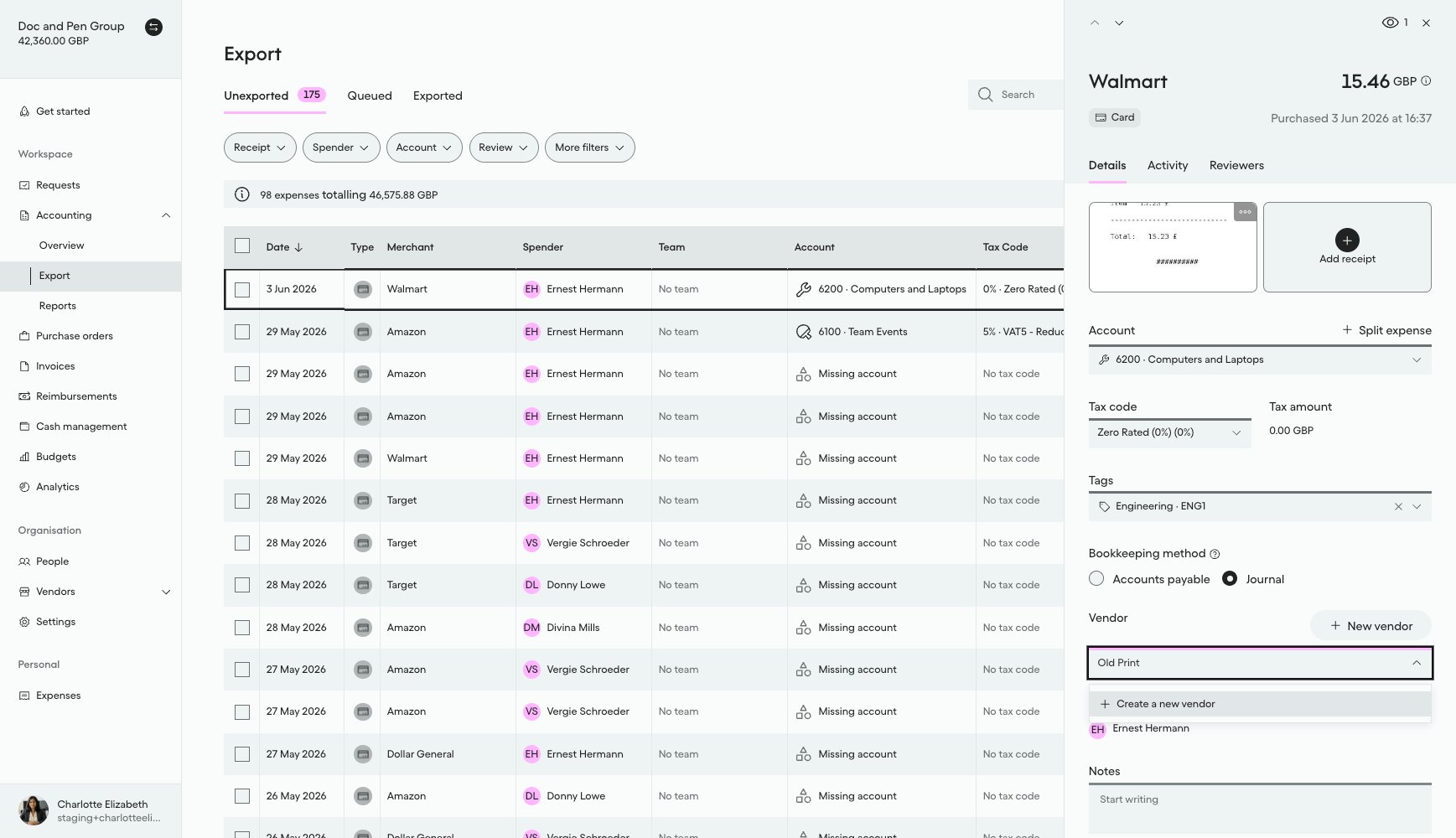
#### What it looks like in Pleo Web App

1. Select **Accounting** from the main left-hand navigation.
2. Select **Export** from the sub-menu.
3. Click on a row to open the details panel for that expense.
4. Select the **Vendor** drop-down menu and type "Old Print" to search.

"Old Print Shop" no longer appears in the Vendor field on an expense, confirming it was archived and excluded from active search results.

<div style={{ textAlign: "center" }}>
  <img src="https://mintcdn.com/pleo-61d4d38b/OQXz7YYPcGlsTpec/images/current/accounting-integrations/imports/vendor-sync/ui-vendors-active-archived-old-print-shop.png?fit=max&auto=format&n=OQXz7YYPcGlsTpec&q=85&s=0841edaa5869c911f5e108779b80b708" alt="Vendor dropdown on an expense no longer showing Old Print Shop" width="100%" style={{ display: "block", margin: "0 auto" }} data-path="images/current/accounting-integrations/imports/vendor-sync/ui-vendors-active-archived-old-print-shop.png" />
</div>

***

## Handling Edge Cases

**Vendor is already `ARCHIVED`:** treat the call as a no-op rather than an error. This can happen if a previous sync run partially completed. See [Handling Edge Cases](/docs/current/how-tos/accounting-integrations/imports/vendors/how-to-create-vendors#handling-edge-cases) on How to Create Vendors for partial-failure and unknown-outcome handling, which applies here too.

***

## Result

| Vendor                   | AS Status | Pleo State Before | Action   | Final Pleo State |
| ------------------------ | --------- | ----------------- | -------- | ---------------- |
| Old Print Shop (EXT-005) | Not in AS | Active            | Archived | Archived         |

***

## What Comes Next?

<WhatComesNext href="/docs/current/guides/accounting-integrations/imports/vendor-sync-workflow-guide#what-comes-next">
  Vendor Sync Workflow Guide
</WhatComesNext>

***

<div className="text-xs uppercase" style={{ fontVariant: 'small-caps' }}>
  this how-to is part of:
</div>

<div className="mt-4 flex flex-wrap gap-2">
  <a
    href="/docs/current/guides/accounting-integrations/imports/vendor-sync-workflow-guide"
    className="inline-flex items-center rounded-full border border-gray-300 dark:border-gray-600
px-3 py-1 text-xs font-medium
bg-white dark:bg-[#1f262b] text-black dark:text-white
hover:bg-gray-100 dark:hover:bg-[#2b2f33]
transition-colors"
  >
    Vendor Sync Workflow Guide
  </a>
</div>

***

## Related Reading

* [How to Fetch and Match Vendors](/docs/current/how-tos/accounting-integrations/imports/vendors/how-to-fetch-and-match-vendors)
* [How to Create Vendors](/docs/current/how-tos/accounting-integrations/imports/vendors/how-to-create-vendors)
* [Sync Vendors Integration Design](/docs/current/integration-design/accounting-integrations/imports/vendors/integration-design-vendor-sync)
* [Platform Capabilities: Vendor Sync](/docs/current/platform/accounting-integrations/imports/vendors/vendor-sync-overview)

***