> ## Documentation Index
> Fetch the complete documentation index at: https://developers.pleo.io/llms.txt
> Use this file to discover all available pages before exploring further.

# How to Update Vendors

> For Vendor Sync, how to update a Pleo Vendor's details to match its corresponding active AS vendor.

export const UpdateVendorsDiagram = () => {
  const [isDark, setIsDark] = useState(false);
  useEffect(() => {
    const check = () => setIsDark(document.documentElement.classList.contains("dark"));
    check();
    const observer = new MutationObserver(check);
    observer.observe(document.documentElement, {
      attributes: true,
      attributeFilter: ["class"]
    });
    return () => observer.disconnect();
  }, []);
  const nodeFill = isDark ? "#212222" : "#EEF4F4";
  const nodeStroke = isDark ? "#848989" : "#E1E6E6";
  const nodeTextStyle = isDark ? ",color:#EEF4F4" : ",color:#131414";
  const s2Fill = isDark ? "#212222" : "#EEF4F4";
  const s2Stroke = isDark ? "#848989" : "#212222";
  const s2TextStyle = isDark ? ",color:#EEF4F4" : ",color:#212222";
  const linkStyle = isDark ? "" : "linkStyle default stroke:#848989,stroke-width:1px;";
  const diagram = `
%%{init: {"themeVariables": {"fontSize": "10px"}}}%%
flowchart LR
    S1["1. Update the Vendor"] --> S2["Vendor details<br>match the AS"]

click S1 "#1-update-the-vendor"

style S1 white-space:normal,fill:${nodeFill},stroke:${nodeStroke}${nodeTextStyle}
style S2 white-space:normal,fill:${s2Fill},stroke:${s2Stroke},stroke-dasharray:5 5${s2TextStyle}
${linkStyle}
`;
  return <Mermaid chart={diagram} />;
};

export const VendorSyncWorkflowDiagramTopNav = ({highlight}) => {
  const [isDark, setIsDark] = useState(false);
  useEffect(() => {
    const check = () => setIsDark(document.documentElement.classList.contains("dark"));
    check();
    const observer = new MutationObserver(check);
    observer.observe(document.documentElement, {
      attributes: true,
      attributeFilter: ["class"]
    });
    return () => observer.disconnect();
  }, []);
  const nodeFill = isDark ? "#212222" : "#EEF4F4";
  const nodeStroke = isDark ? "#848989" : "#E1E6E6";
  const nodeTextStyle = isDark ? ",color:#EEF4F4" : ",color:#131414";
  const subgraphFill = isDark ? "#131414" : "#ffffff";
  const subgraphStroke = isDark ? "#848989" : "#6B7070";
  const subgraphTextStyle = isDark ? ",color:#EEF4F4" : ",color:#6B7070";
  const linkStyle = isDark ? "" : "linkStyle default stroke:#848989,stroke-width:1px;";
  const highlightStyle = highlight ? `style ${highlight} stroke:#FEB6FE,stroke-width:2px` : "";
  const diagram = `
%%{init: {"themeVariables": {"fontSize": "18px"}}}%%
flowchart LR

subgraph AS["Accounting System"]
    source["Vendors"]
end

subgraph Pleo["Pleo APIs"]
    A["1. Fetch and<br>Match<br>Vendors<br>"]
    B["2. Create<br>Vendors<br>"]
    C["3. Unarchive<br>Vendors<br>"]
    D["4. Update<br>Vendors<br>"]
    E["5. Archive<br>Vendors<br>"]
    A --> B --> C --> D --> E
end

source --> A

click A "/docs/current/how-tos/accounting-integrations/imports/vendors/how-to-fetch-and-match-vendors"
click B "/docs/current/how-tos/accounting-integrations/imports/vendors/how-to-create-vendors"
click C "/docs/current/how-tos/accounting-integrations/imports/vendors/how-to-unarchive-vendors"
click D "/docs/current/how-tos/accounting-integrations/imports/vendors/how-to-update-vendors"
click E "/docs/current/how-tos/accounting-integrations/imports/vendors/how-to-archive-vendors"

style A white-space:normal,fill:${nodeFill},stroke:${nodeStroke}${nodeTextStyle}
style B white-space:normal,fill:${nodeFill},stroke:${nodeStroke}${nodeTextStyle}
style C white-space:normal,fill:${nodeFill},stroke:${nodeStroke}${nodeTextStyle}
style D white-space:normal,fill:${nodeFill},stroke:${nodeStroke}${nodeTextStyle}
style E white-space:normal,fill:${nodeFill},stroke:${nodeStroke}${nodeTextStyle}
style source white-space:normal,fill:${nodeFill},stroke:${nodeStroke}${nodeTextStyle}

style AS fill:${subgraphFill},stroke:${subgraphStroke}${subgraphTextStyle}
style Pleo fill:${subgraphFill},stroke:${subgraphStroke}${subgraphTextStyle}

${highlightStyle}
${linkStyle}
`;
  return <Mermaid chart={diagram} />;
};

export const WhatComesNext = ({children, href}) => <div className="mt-4">
    <a href={href} className="btn-primary">
      {children} →
    </a>
  </div>;

export const NoteCallout = ({title, children}) => <div className="callout-box callout-note">
    <div className="callout-row">
      <span className="callout-icon">
        <svg width="22" height="22" xmlns="http://www.w3.org/2000/svg" viewBox="0 0 256 256" fill="currentColor"><path d="M208,104a79.86,79.86,0,0,1-30.59,62.92A24.29,24.29,0,0,0,168,186v6a8,8,0,0,1-8,8H96a8,8,0,0,1-8-8v-6a24.11,24.11,0,0,0-9.3-19A79.87,79.87,0,0,1,48,104.45C47.76,61.09,82.72,25,126.07,24A80,80,0,0,1,208,104Z" opacity="0.2" /><path d="M176,232a8,8,0,0,1-8,8H88a8,8,0,0,1,0-16h80A8,8,0,0,1,176,232Zm40-128a87.55,87.55,0,0,1-33.64,69.21A16.24,16.24,0,0,0,176,186v6a16,16,0,0,1-16,16H96a16,16,0,0,1-16-16v-6a16,16,0,0,0-6.23-12.66A87.59,87.59,0,0,1,40,104.49C39.74,56.83,78.26,17.14,125.88,16A88,88,0,0,1,216,104Zm-16,0a72,72,0,0,0-73.74-72c-39,.92-70.47,33.39-70.26,72.39a71.65,71.65,0,0,0,27.64,56.3A32,32,0,0,1,96,186v6h64v-6a32.15,32.15,0,0,1,12.47-25.35A71.65,71.65,0,0,0,200,104Zm-16.11-9.34a57.6,57.6,0,0,0-46.56-46.55,8,8,0,0,0-2.66,15.78c16.57,2.79,30.63,16.85,33.44,33.45A8,8,0,0,0,176,104a9,9,0,0,0,1.35-.11A8,8,0,0,0,183.89,94.66Z" /></svg>
      </span>
      <div>
        {title && <div className="callout-title">
            {title}
          </div>}
        <div className="callout-body">
          {children}
        </div>
      </div>
    </div>
  </div>;

export const RememberCallout = ({title, children}) => <div className="callout-box callout-remember">
    <div className="callout-row">
      <span className="callout-icon">
        <svg width="22" height="22" xmlns="http://www.w3.org/2000/svg" viewBox="0 0 256 256" fill="currentColor"><path d="M229.66,98.34,172.39,155.8c11.46,22.93-1.72,45.86-10.11,57a8,8,0,0,1-12,.83L42.34,105.76A8,8,0,0,1,43,93.85c29.65-23.92,57.4-10,57.4-10l57.27-57.46a8,8,0,0,1,11.31,0L229.66,87A8,8,0,0,1,229.66,98.34Z" opacity="0.2" /><path d="M235.32,81.37,174.63,20.69a16,16,0,0,0-22.63,0L98.37,74.49c-10.66-3.34-35-7.37-60.4,13.14a16,16,0,0,0-1.29,23.78L85,159.71,42.34,202.34a8,8,0,0,0,11.32,11.32L96.29,171l48.29,48.29A16,16,0,0,0,155.9,224c.38,0,.75,0,1.13,0a15.93,15.93,0,0,0,11.64-6.33c19.64-26.1,17.75-47.32,13.19-60L235.33,104A16,16,0,0,0,235.32,81.37ZM224,92.69h0l-57.27,57.46a8,8,0,0,0-1.49,9.22c9.46,18.93-1.8,38.59-9.34,48.62L48,100.08c12.08-9.74,23.64-12.31,32.48-12.31A40.13,40.13,0,0,1,96.81,91a8,8,0,0,0,9.25-1.51L163.32,32,224,92.68Z" /></svg>
      </span>
      <div>
        {title && <div className="callout-title">
            {title}
          </div>}
        <div className="callout-body">
          {children}
        </div>
      </div>
    </div>
  </div>;

<VendorSyncWorkflowDiagramTopNav highlight="D" />

<div className="border-[1px] rounded-none p-4 bg-[#ffffff] border-[#FEB6FE] dark:bg-[#131414] dark:border-[#FEB6FE]">
  <UpdateVendorsDiagram />
</div>

This how-to covers updating a Pleo Vendor's details to match its corresponding active AS vendor.

Run this after [How to Fetch and Match Vendors](/docs/current/how-tos/accounting-integrations/imports/vendors/how-to-fetch-and-match-vendors) found a matching Pleo Vendor whose details differ from the AS.

## Prerequisites

Before you begin:

* You have completed [How to Fetch and Match Vendors](/docs/current/how-tos/accounting-integrations/imports/vendors/how-to-fetch-and-match-vendors) and found a matching Pleo Vendor whose details differ from the AS
* Your integration is authenticated using one of the [supported authentication methods](/docs/current/integration-design/auth/integration-design-auth-overview#authentication-policy-overview)
* Your integration can call Pleo's Vendors API endpoints

## Scenario

This how-to continues from the [How to Fetch and Match Vendors](/docs/current/how-tos/accounting-integrations/imports/vendors/how-to-fetch-and-match-vendors) scenario: "Kaffehuset AS" (EXT-004) is active in both systems, but its country and currency differ (Pleo has `SE`/`SEK`, the AS has `DK`/`DKK`).

## Steps

<RememberCallout title="Remember">
  Run this call inside your per-company concurrency lock, shared with Vendor Creation. See [How to Create Vendors](/docs/current/how-tos/accounting-integrations/imports/vendors/how-to-create-vendors#steps) for what this prevents and why every write in this suite needs it.
</RememberCallout>

### 1. Update the Vendor

**API Endpoint**: PUT [`/v1/vendors/{id}`](/reference/external-vendors/update-a-vendor)

The "Kaffehuset AS" Vendor's country and currency are updated from `SE`/`SEK` to match the AS values of `DK`/`DKK` in this example.

<NoteCallout title="Note">
  The fetched Vendor object (from [How to Fetch and Match Vendors](/docs/current/how-tos/accounting-integrations/imports/vendors/how-to-fetch-and-match-vendors)) isn't the same shape as the PUT request body, so don't send it back as-is.

  * **Client-writable on update:** `companyId`, `externalId`, `code`, `name`, `country`, `defaultCurrency`, `registrationNumber`, `taxRegistrationNumber`, `state`
  * **Server-managed (read-only, present on the fetched/response object but not accepted in the PUT body):** `id`, `accountingSystem`, `createdAt`, `updatedAt`

  Build a dedicated update payload from only the writable fields, rather than mutating and re-sending the fetched object.
</NoteCallout>

<NoteCallout title="Note">
  Don't copy a blank, malformed, or non-ISO `country` or `defaultCurrency` value from the AS record into this payload.

  * If the incoming `country` value is invalid, omit it from `updatePayload` instead. This preserves the existing Pleo value, rather than overwriting it with bad data. Log the invalid value for investigation.
  * If the incoming `defaultCurrency` value is invalid, either skip updating that vendor and log it for investigation, or send a fallback value and continue: fall back to the existing Pleo Vendor's `defaultCurrency`, or to a fallback currency your integration preconfigures for the company. `defaultCurrency` is required by the Vendors API, so it can't be omitted from `updatePayload`. Log the invalid value for investigation either way.

  This follows the same [invalid-value handling rule](/docs/current/integration-design/accounting-integrations/imports/vendors/integration-design-vendor-sync-data-mapping#vendors-data-mapping) used elsewhere in Vendor Sync.
</NoteCallout>

**Example Pseudo:**

```pseudo theme={null}
if detailsDiffer(matchedVendor, vendor):
    if isValidCurrency(vendor.defaultCurrency):
        currency = vendor.defaultCurrency
    else:
        logDataQualityIssue(vendor, field = "defaultCurrency")
        currency = matchedVendor.defaultCurrency  # or a preconfigured fallback currency
        # or: skip updating this vendor, log it, and continue with the next one

    updatePayload.companyId               = matchedVendor.companyId
    updatePayload.externalId              = vendor.externalId
    updatePayload.code                    = vendor.code
    updatePayload.name                    = vendor.name
    if isValidCountry(vendor.country):
        updatePayload.country             = vendor.country
    else:
        logDataQualityIssue(vendor, field = "country")
    updatePayload.defaultCurrency          = currency
    updatePayload.registrationNumber      = vendor.registrationNumber
    updatePayload.taxRegistrationNumber   = vendor.taxRegistrationNumber
    updatePayload.state                   = "ACTIVE"
    PUT updatePayload to Pleo /v1/vendors/{matchedVendor.id}
```

<Tabs>
  <Tab title="OAuth 2.0">
    ```bash theme={null}
    curl -X PUT "https://external.staging.pleo.io/v1/vendors/b2c3d4e5-f678-901f-2345-bcd67f89aabc" \
      -H "Authorization: Bearer <access_token>" \
      -H "Content-Type: application/json;charset=UTF-8" \
      -d '{
            "companyId": "12abc3d4-e567-890e-1234-abc56e78fabc",
            "externalId": "EXT-004",
            "code": "1004",
            "name": "Kaffehuset AS",
            "country": "DK",
            "defaultCurrency": "DKK",
            "registrationNumber": "556677-8899",
            "taxRegistrationNumber": "SE556677889901",
            "state": "ACTIVE"
          }'
    ```
  </Tab>

  <Tab title="API Key">
    ```bash theme={null}
    curl --request PUT \
      -u "pls_1ab2cd3e4f5g6h7a89b012c34de56f78_gabc90:" \
      -H "Accept: application/json;charset=UTF-8" \
      -H "Content-Type: application/json;charset=UTF-8" \
      "https://external.staging.pleo.io/v1/vendors/b2c3d4e5-f678-901f-2345-bcd67f89aabc" \
      -d '{
            "companyId": "12abc3d4-e567-890e-1234-abc56e78fabc",
            "externalId": "EXT-004",
            "code": "1004",
            "name": "Kaffehuset AS",
            "country": "DK",
            "defaultCurrency": "DKK",
            "registrationNumber": "556677-8899",
            "taxRegistrationNumber": "SE556677889901",
            "state": "ACTIVE"
          }' \
    | jq
    ```
  </Tab>
</Tabs>

#### Example Response

```json theme={null}
{
  "data": {
    "id": "b2c3d4e5-f678-901f-2345-bcd67f89aabc",
    "companyId": "12abc3d4-e567-890e-1234-abc56e78fabc",
    "externalId": "EXT-004",
    "code": "1004",
    "name": "Kaffehuset AS",
    "country": "DK",
    "defaultCurrency": "DKK",
    "registrationNumber": "556677-8899",
    "taxRegistrationNumber": "SE556677889901",
    "state": "ACTIVE",
    "accountingSystem": "custom_api_integration",
    "createdAt": "2026-06-01T08:48:52.799351Z",
    "updatedAt": "2026-07-08T09:20:10.215202Z"
  }
}
```

<RememberCallout title="Remember">
  As this is a PUT action, include the current values for every field, including `externalId` and `state`; only the fields that changed should have new values.
</RememberCallout>

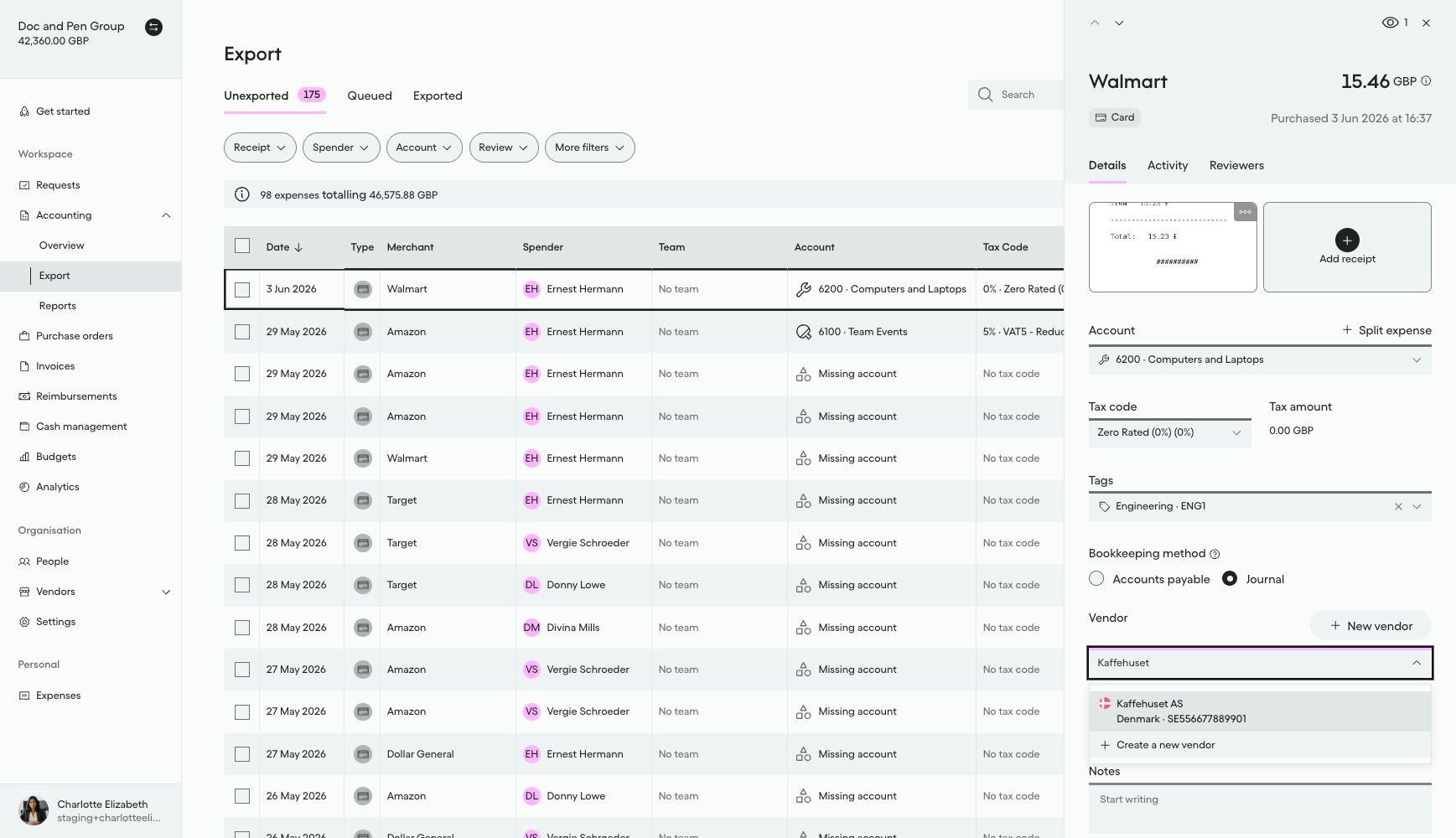
#### What it looks like in Pleo Web App

1. Select **Accounting** from the main left-hand navigation.
2. Select **Export** from the sub-menu.
3. Click on a row to open the details panel for that expense.
4. Select the **Vendor** drop-down menu and type "Kaffehuset" to search.

"Kaffehuset AS" now shows Denmark, confirming the country/currency update was applied.

<div style={{ textAlign: "center" }}>
  <img src="https://mintcdn.com/pleo-61d4d38b/OQXz7YYPcGlsTpec/images/current/accounting-integrations/imports/vendor-sync/ui-vendors-active-updated-kaffehuset.png?fit=max&auto=format&n=OQXz7YYPcGlsTpec&q=85&s=4ec03d678fedd5708b8bc814636c3bdd" alt="Vendor dropdown on an expense showing Kaffehuset AS updated to Denmark" width="100%" style={{ display: "block", margin: "0 auto" }} data-path="images/current/accounting-integrations/imports/vendor-sync/ui-vendors-active-updated-kaffehuset.png" />
</div>

***

## Handling Edge Cases

See [Handling Edge Cases](/docs/current/how-tos/accounting-integrations/imports/vendors/how-to-create-vendors#handling-edge-cases) on How to Create Vendors for partial-failure and unknown-outcome handling, which applies to this write too.

***

## Result

| Vendor                  | AS Status | Pleo State Before        | Action  | Final Pleo State |
| ----------------------- | --------- | ------------------------ | ------- | ---------------- |
| Kaffehuset AS (EXT-004) | Active    | Active, country differed | Updated | Active           |

***

## What Comes Next?

<WhatComesNext href="/docs/current/how-tos/accounting-integrations/imports/vendors/how-to-archive-vendors">
  How to Archive Vendors
</WhatComesNext>

***

<div className="text-xs uppercase" style={{ fontVariant: 'small-caps' }}>
  this how-to is part of:
</div>

<div className="mt-4 flex flex-wrap gap-2">
  <a
    href="/docs/current/guides/accounting-integrations/imports/vendor-sync-workflow-guide"
    className="inline-flex items-center rounded-full border border-gray-300 dark:border-gray-600
px-3 py-1 text-xs font-medium
bg-white dark:bg-[#1f262b] text-black dark:text-white
hover:bg-gray-100 dark:hover:bg-[#2b2f33]
transition-colors"
  >
    Vendor Sync Workflow Guide
  </a>
</div>

***

## Related Reading

* [How to Fetch and Match Vendors](/docs/current/how-tos/accounting-integrations/imports/vendors/how-to-fetch-and-match-vendors)
* [How to Archive Vendors](/docs/current/how-tos/accounting-integrations/imports/vendors/how-to-archive-vendors)
* [Vendor Sync Data Mapping](/docs/current/integration-design/accounting-integrations/imports/vendors/integration-design-vendor-sync-data-mapping)
* [Platform Capabilities: Vendor Sync](/docs/current/platform/accounting-integrations/imports/vendors/vendor-sync-overview)

***