> ## Documentation Index
> Fetch the complete documentation index at: https://developers.pleo.io/llms.txt
> Use this file to discover all available pages before exploring further.
# How to Revoke Access to the Pleo MCP
> How to revoke Pleo MCP access from inside Pleo, or disconnect it from your AI client.
This page is for users revoking their own Pleo MCP access, either from inside Pleo or from their AI client.
## Revoke Access from Inside Pleo
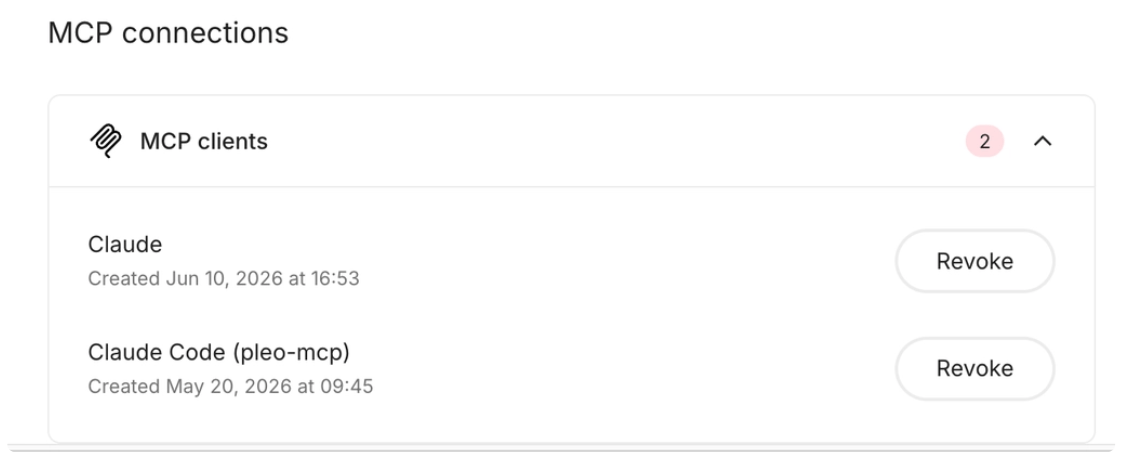
Go to **My Account → Security and Devices → MCP Connections** and revoke the connection.
## Disconnect from Your AI Client
You can also remove the connection from inside your AI client. The exact steps vary by tool. In Claude, for example:
Go to **Connectors**, find the Pleo Connector, and click **Disconnect**.
For other tools, check that tool's connector or app settings and remove Pleo from there.
***
## Related Reading
* [Install the Pleo MCP: Choose Your AI Tool](/docs/current/pleo-mcp/how-tos/installation/overview)
* [Access & Permissions](/docs/current/pleo-mcp/get-started/access-and-permissions)
***