

- The Accounting System is available
- The correct company context is selected for multi-entity scenarios
- The correct Integration Configuration exists
Prerequisites
Before you begin:- You’re familiar with the Export Lifecycle and the Integration Design for Pre-Export Validation
- An Export Job has been successfully Detected and Started for processing
- You can call both Pleo APIs and the target Accounting System APIs
Steps
1. Validate Accounting System Connectivity
Ensure the Accounting System is reachable and ready to accept data. Confirm:- API authentication is valid
- required permissions are available
- key operations are supported
- ability to create journal entries
- support for vendor bookkeeping (if applicable)
- support for attachments
2. Validate Company Context
API Endpoint: GET /v3/export-jobs Example parameters: companyId:12abc3d4-e567-890e-1234-abc56e78fabc
Use Export Job metadata to ensure the correct company context is selected. This is important in multi-entity setups.
3. Validate Bookkeeping Capability
API Endpoint: GET /v3/export-jobs Export Jobs may require specific bookkeeping workflows. For example:4. Fail Early if Validation Fails
API Endpoint: POST /v3/export-job-events Example parameters: jobId:8eb648ab-464b-42a0-ba17-eda703657e33
If any validation step fails, the Export Job must be explicitly marked as failed.
Failing early ensures:
- no Export Items are processed
- the system remains consistent
- users receive clear feedback in Pleo’s Web App
Example Request
- OAuth 2.0
- API Key
Example Response
API Endpoint: GET/v3/export-jobs/{jobId}
If the request succeeds, re-running the /v3/export-jobs/{jobId} command will return an updated status of failed.
Pleo Web App
The failed export status is updated in the Pleo Web App. Once any issues have been resolved, rerun the export job by clicking Export at the bottom of the screen.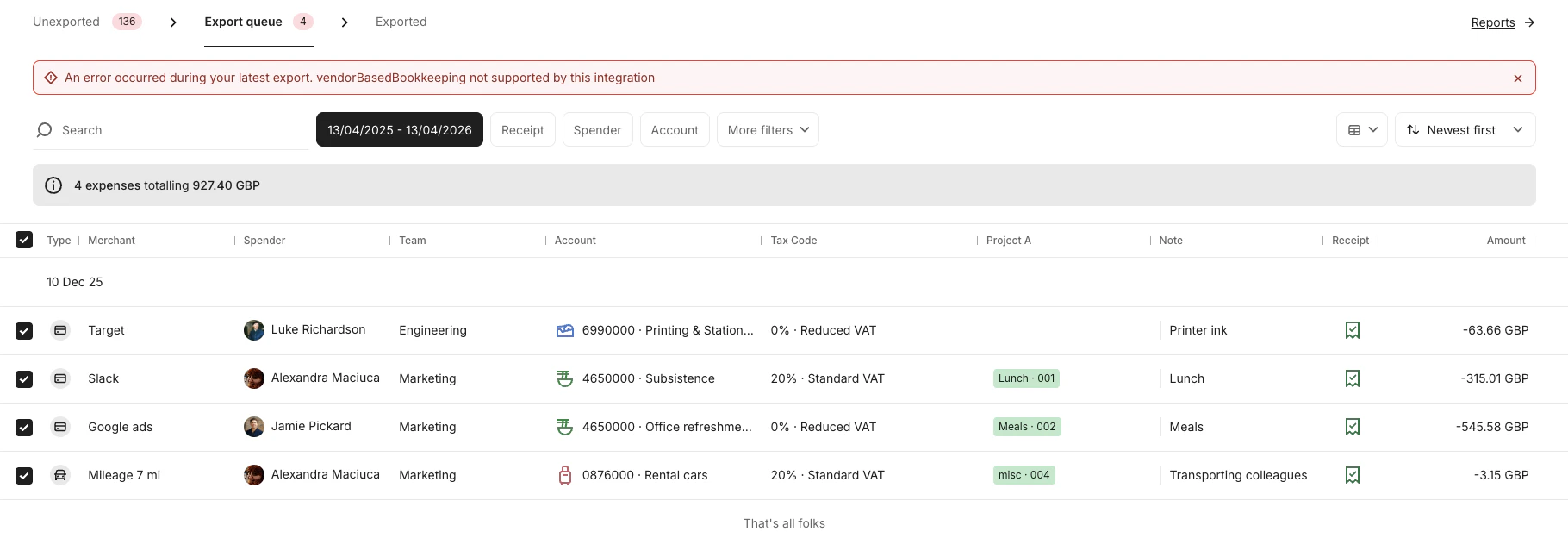
Common Failure Reasons
Use clear and actionable failure reasons:invalid_configuration— unsupported workflowsmissing_configuration— missing mappings or setupaccounting_system_unreachable— connectivity or API issues
Result
After completing these steps:- The integration has verified readiness for export processing
- Invalid or unsupported scenarios are safely rejected
- Only valid Export Jobs proceed to item processing
What Comes Next?
this how-to is part of: