

Prerequisites
Before you begin:- You have completed How to Fetch and Match Vendors and confirmed a Pleo Vendor has no matching active AS vendor
- Your integration is authenticated using one of the supported authentication methods
- Your integration can call Pleo’s Vendors API endpoints
Scenario
This how-to continues from the How to Fetch and Match Vendors scenario: “Old Print Shop” (EXT-005) is active in Pleo, but no longer active in the AS.Steps
1. Archive the Vendor
API Endpoint: POST/v1/vendors/{id}:archive
Do not delete Vendors. Archiving is non-destructive and reversible.
Example Pseudo:
- OAuth 2.0
- API Key
204 No Content on success. The Vendor’s state is now ARCHIVED.
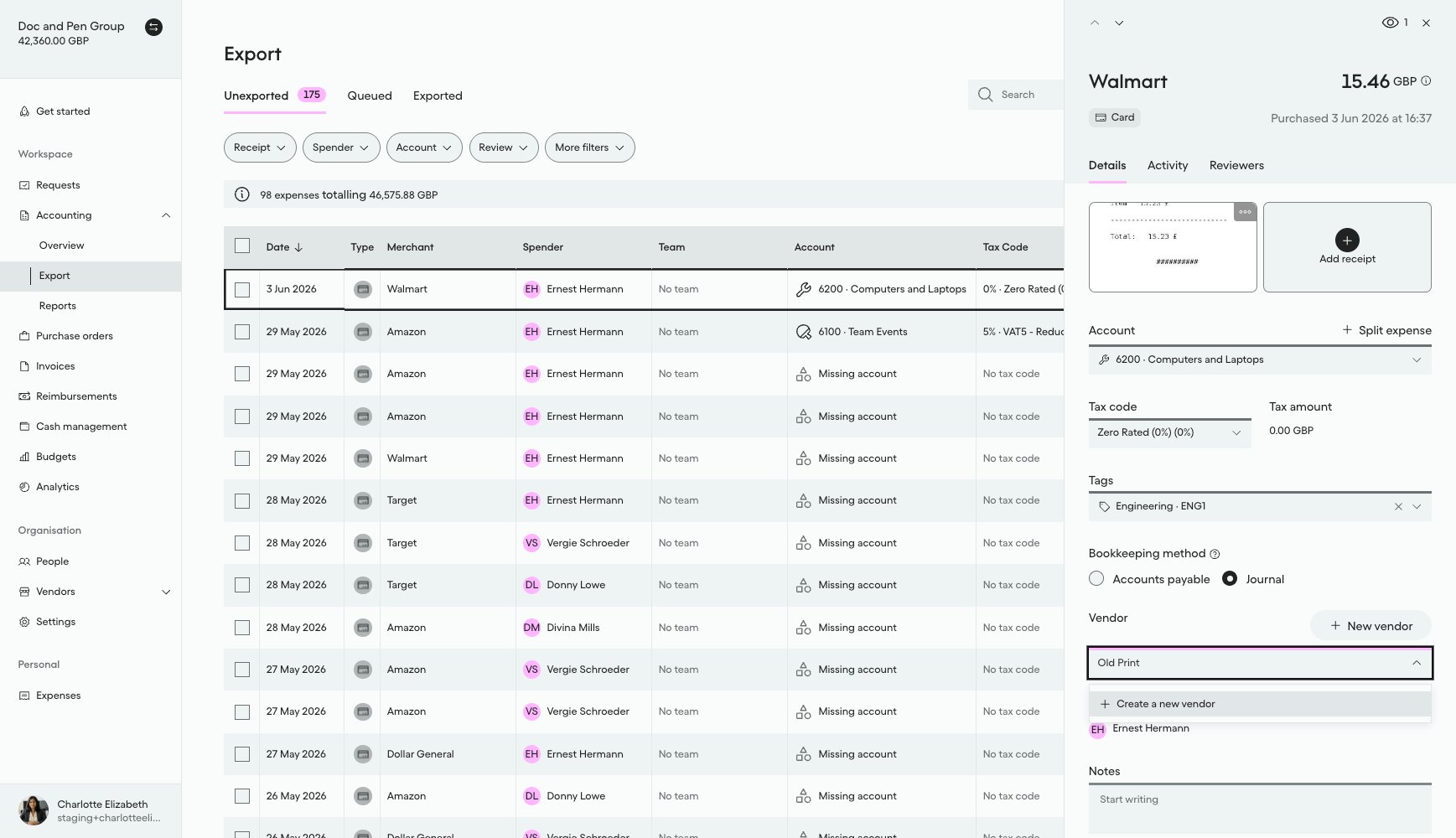
What it looks like in Pleo Web App
- Select Accounting from the main left-hand navigation.
- Select Export from the sub-menu.
- Click on a row to open the details panel for that expense.
- Select the Vendor drop-down menu and type “Old Print” to search.
Handling Edge Cases
Vendor is alreadyARCHIVED: treat the call as a no-op rather than an error. This can happen if a previous sync run partially completed. See Handling Edge Cases on How to Create Vendors for partial-failure and unknown-outcome handling, which applies here too.
Result
What Comes Next?
this how-to is part of:
Related Reading
- How to Fetch and Match Vendors
- How to Create Vendors
- Sync Vendors Integration Design
- Platform Capabilities: Vendor Sync