

Prerequisites
Before you begin:- You have generated a Standalone API Key
Steps
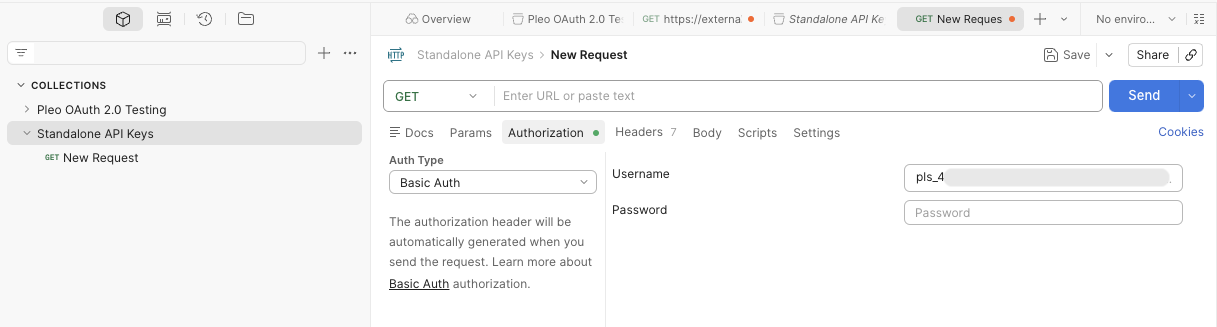
1. Create an HTTP Request
In your Postman collection:- Click New and then select HTTP Request
- Ensure that the HTTP method corresponds to the endpoint being called, for example:
GET - Enter the Staging URL for the Pleo API you want to test, for example:
https://external.staging.pleo.io/v2/employees

2. Add Authorisation
- Click the Authorization tab
- Select Basic Auth as the Auth Type
- Enter your Standalone API Key as the Username
- Leave the Password field blank
3. Send the Request
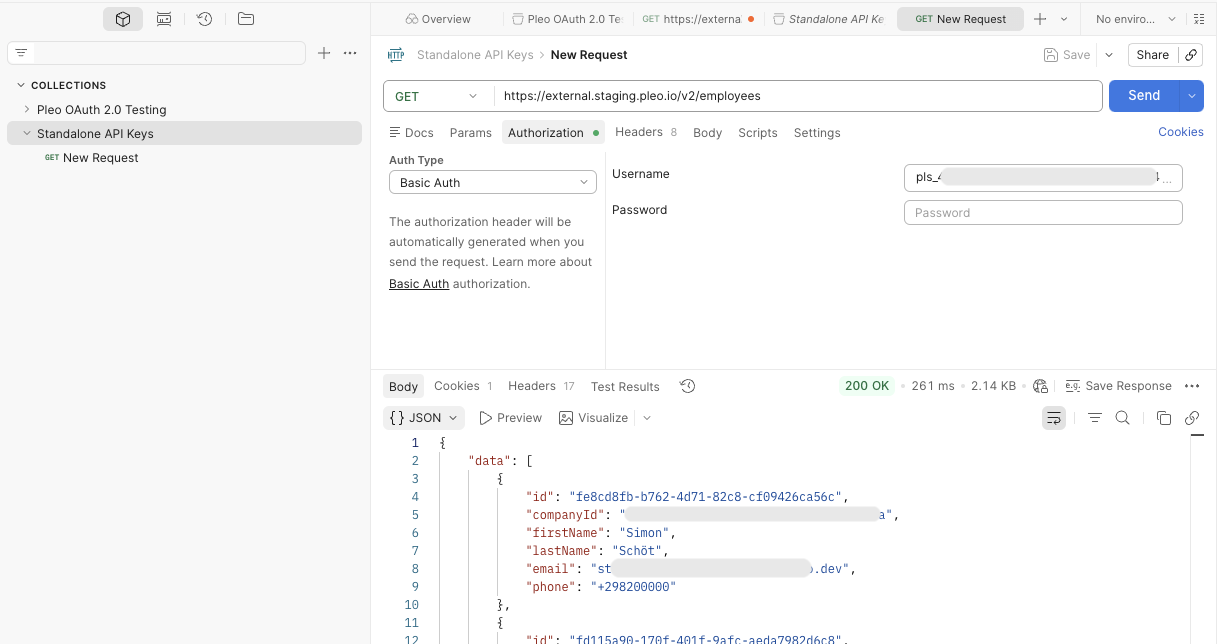
- Click the Send button at the top of the screen
- If everything is configured correctly, you should receive a JSON response
Result
After completing these steps:- You have successfully made a Pleo API call using Standalone API Keys in Postman
What Comes Next?
this how-to is part of:
Related Reading
- OAuth 2.0 Setup with Postman Workflow Guide: Step-by-step instructions on how to configure OAuth 2.0 where Postman handles the full token lifecycle.